
Accessing Student Details in Disco ICT
Purpose
These instructions explain how to log in to Disco ICT, search for a student, and view student account details including email address and password.
Step 1: Open Disco ICT
Open a web browser (Chrome recommended).
Navigate to:
https://disco.pcc.vic.edu.au
Step 2: Sign In
At the sign-in screen, enter your computer login credentials:
Username:
firstname.lastnamePassword: Your computer password
Click Sign in.
⚠️ If you are unable to sign in, confirm your network login works on a school computer. If you cannot still access DiscoICT, please see the IT Team for assistance.
Step 3: Locate a Student Record
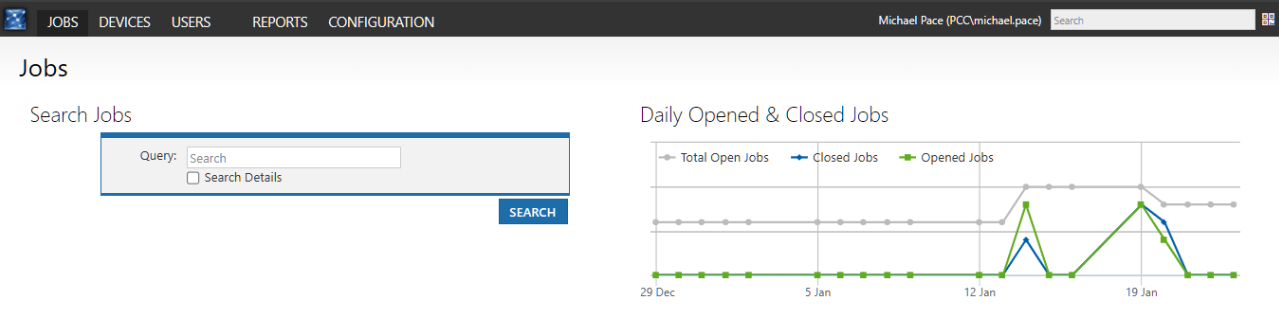
Once logged in, you will arrive at the Disco ICT Dashboard.
Use the Search bar in the top-right corner of the screen.
Search using one of the following:
Student ID, or
Student First Name / Last Name
Select the correct student from the search results.
Step 4: View Student Details (Student View)
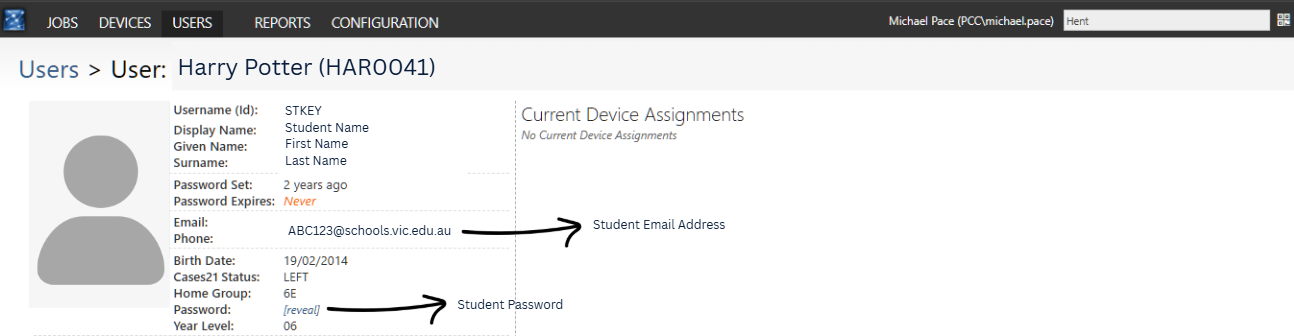
After selecting the student, you will be taken to the Student View page.
On the left-hand side, you can view key student information, including:
Student name and year level
Student email address
To view the student’s password:
Locate the Password field
Click Reveal to display the password
? Passwords should only be accessed for support purposes and must not be shared unnecessarily.